Show robot logs
Download robot logs
You can retrieve the robot logs using the provided ROS2 script as follows:
source install/setup.bash

# Replace <robot_ip> with the actual IP address of your Staubli robot
ros2 run staubli_robot_driver download_logs.py --ros-args -p robot_ip:=<robot_ip>
The logs will be downloaded to the current working directory in the folder .staubli_robot_logs.
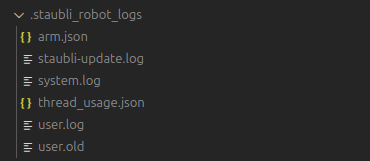
Fig. 4 You should get similar files to this when the logs are successfully downloaded.
Display robot logs in terminal
Use the following command to display the robot logs in the terminal with color coding for better readability:
source install/setup.bash
ros2 run staubli_robot_driver show_logs.py
By default, this command will display the log messages since the last reboot (last RUN entry).
You should see output similar to this:
Displaying USER log from .staubli_robot_logs/user.log since last reboot (new entries first):

(Press 'q' to quit, or use arrow keys to navigate)

Date Time Timestamp Type Severity Message

03/11/2025 19:24:58 2892.120 msg ERROR ros2_server::controlTask : Error, hard stop and reset
03/11/2025 19:24:58 2892.120 msg ERROR ros2_server::controlTask : Error, command sequence delay too high (5 ), going to STOP mode
03/11/2025 19:24:58 2892.094 msg INFO ros2_server::controlTask : connection to controller established
03/11/2025 19:24:58 2892.080 msg ERROR ros2_server::controlTask : Error, hard stop and reset
03/11/2025 19:24:58 2892.078 msg INFO ros2_server::jointPositionControl : Stopping movejSync
03/11/2025 19:24:58 2892.078 msg INFO ros2_server::controlTask : Stopping joint position command mode
03/11/2025 19:24:58 2892.078 msg WARN ros2_server::controlTask : Error, transitioning from command modes requires a stop
03/11/2025 19:24:58 2892.078 msg ERROR ros2_server::controlTask : Error, command sequence delay too high (5 ), going to STOP mode